Though there are several ways to save your friend’s MSN Messenger (Windows Live Messenger), Messenger Plus! Live does the job in the easiest way.
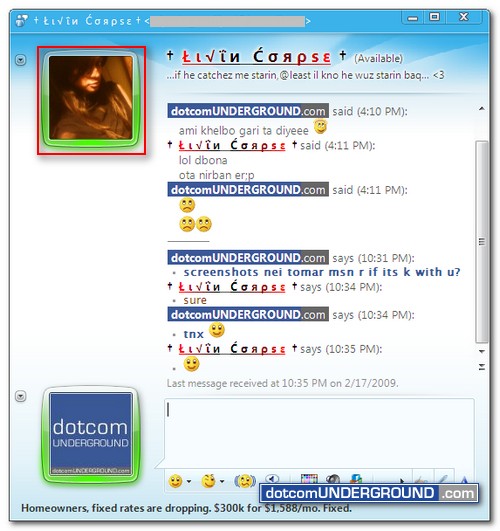
This is the MSN Messenger Display Picture (DP) we wish to save:
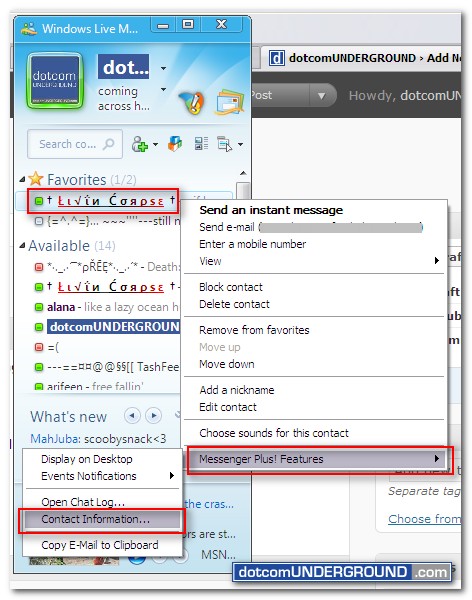
Now select and Right Click on the contact, click on “Messenger Plus! Features“, and then click on “Contact Information…”
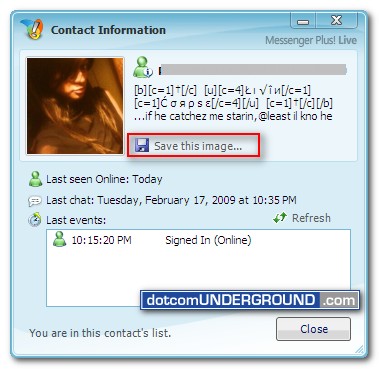
This will bring up the “Contact Information” window. Click on the “Save this image…”
Now choose the location where you want to save the pic and Save it.
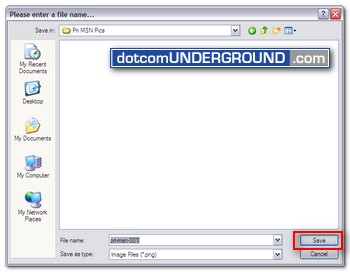
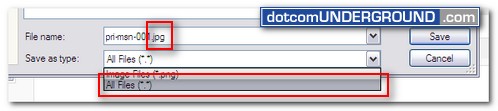
By default it saves the pic as .png. However if you wish to save as .jpg, select “All Files (*.*)” from Save as type: and use “file-name.jpg” as the file name.
And here we have the pic saved :)
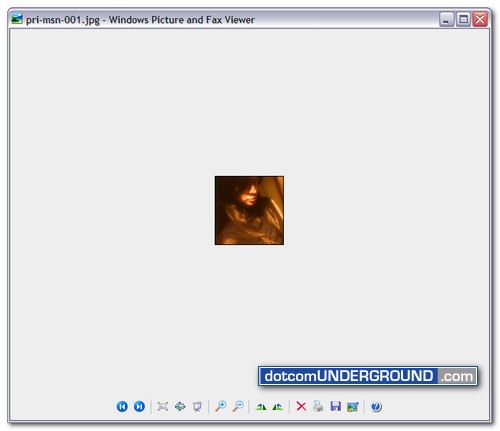
Thanks to †Åι√Îи ĆσÑÏѕε †for being “screenshot model” on my lame blog. :)




Tags: How-To, Messenger Plus! Live, MSN Messenger, Tech, Technology, Tips and Tricks, Tutorials, Windows Live Messenger
Categories: Tech, Tips and Tricks, Tutorials